HubSpot Integration Setup Guide
Rendeal AI is an email-based add-on that uses cognitive AI to parse email threads in Gmail and Outlook, automatically syncing the resulting Contact, Company, and Deal data directly to HubSpot.
1. Install the App
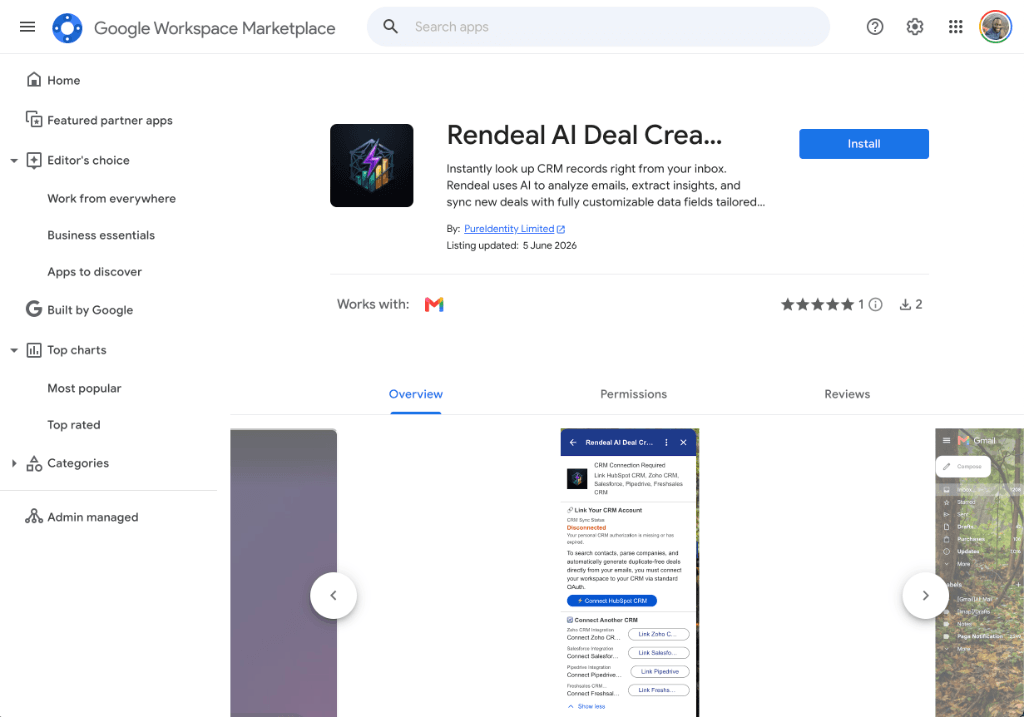
To get started, you must install the Rendeal AI extension in your email client.
- For Gmail users: Install the Add-on from the Google Workspace Marketplace. (Note: You must be logged into Gmail with the same email account you intend to use for your HubSpot portal).
- For Outlook users: Install the Add-on from the Microsoft AppSource Marketplace.
2. Connect your HubSpot Account
- Go to your email inbox and click on any email thread containing a conversation with a prospect.
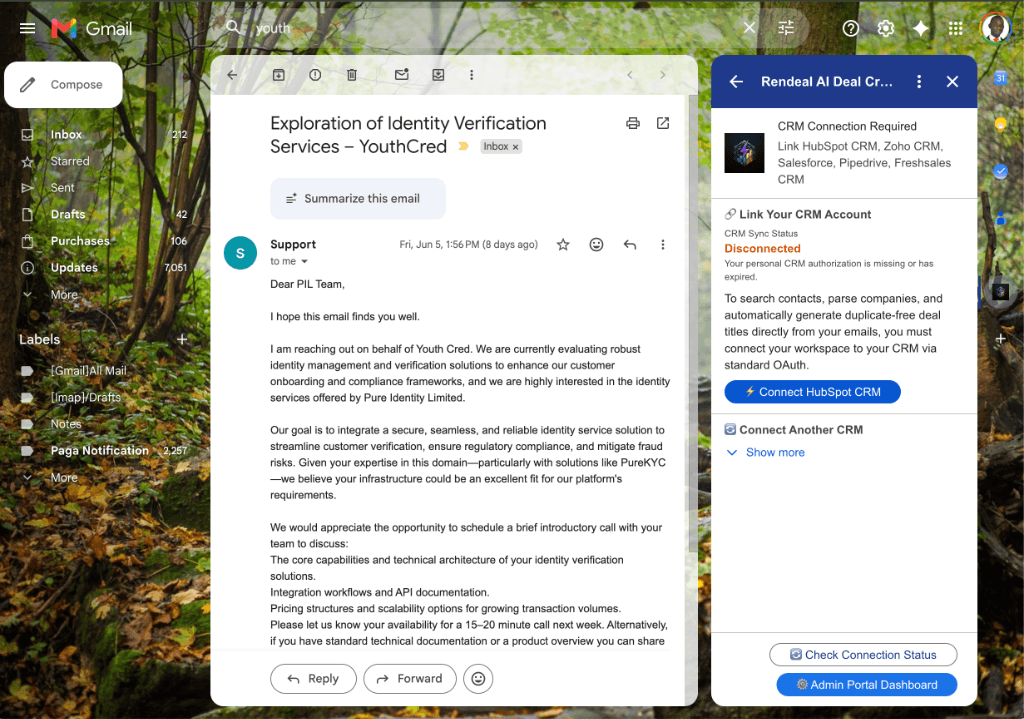
- Open the Rendeal AI Add-on from the right-hand sidebar.
- Click the prompt to authorize the add-on via the standard Google/Microsoft OAuth flow.
- Next, click the Connect HubSpot button inside the add-on sidebar.
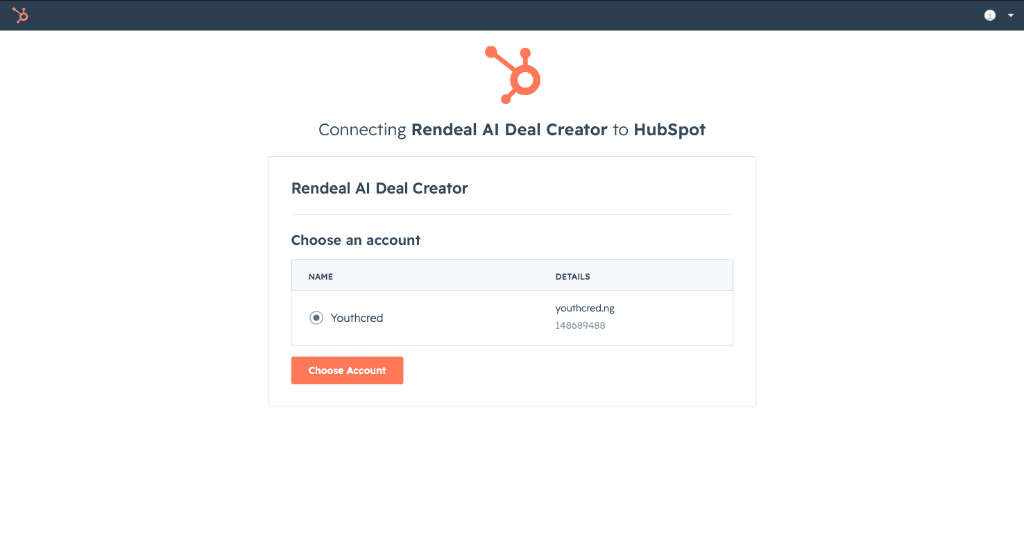
- You will be redirected to the HubSpot OAuth screen. Select your portal and click Choose Account.
- Review the requested scopes (Rendeal requires access to read/write Contacts, Companies, and Deals).
- Click Grant Access.
- Return to your email add-on and click "I have authorized HubSpot".
3. How to Use Rendeal AI
Once your HubSpot account is connected, Rendeal AI operates manually on a per-email basis to give you full control over what gets synced to your CRM.
- Data Lookup: When you open an email, the add-on will instantly look up the sender in HubSpot to see if a Contact or Company already exists.
- AI Extraction: Click "Sync to HubSpot CRM". Rendeal's AI will scan the open email thread and extract Contact profiles, Company details, and propose a Deal value.
- Review & Sync: Review the extracted data in the sidebar. If you are satisfied with the AI's output, click the final "Sync to HubSpot" button.
- Verify: Open your HubSpot CRM portal to verify that the new Contact, Company, and Deal have been successfully created and seamlessly associated with each other.
4. Disconnect & Uninstall
You can revoke Rendeal AI's access to your HubSpot portal at any time.
⚠️ Data Consequences
If you disconnect or uninstall Rendeal AI, no data will be deleted from your HubSpot portal. All previously synced Contacts, Companies, and Deals will remain safely in your CRM. However, you will no longer be able to sync new email threads to HubSpot from your inbox.
To Disconnect your HubSpot Account:
- Open the Rendeal AI Add-on in your email client.
- Click on the Settings gear icon.
- Under the CRM Connections section, click Disconnect next to HubSpot.
To Uninstall from HubSpot completely:
- Log in to your HubSpot portal.
- Navigate to Settings > Integrations > Connected Apps.
- Locate Rendeal AI Deal Creator in your list of apps.
- Click Actions > Uninstall.
Need Help?
If you encounter any issues during the HubSpot setup process, our support team is available.
Contact Support